Why does my Outlook have a red exclamation mark? Seeing a tiny red circle with a white exclamation point—or a yellow warning triangle—suddenly appear over your Microsoft Outlook taskbar or system tray icon is one of the most confusing desktop alerts for Windows and Mac users. What makes the warning especially frustrating is that it often pops up while your Wi-Fi is working normally, leaving outgoing messages trapped in your Outbox or triggering a persistent “Disconnected” or “Need Password” status bar message at the bottom of your screen.
Whether you are asking why is there a red exclamation mark on my outlook icon during a widespread Microsoft 365 server disruption or troubleshooting a local profile glitch after a Windows 11 update, that badge is not a generic crash warning. Instead, Outlook uses specific overlay symbols to tell you whether an individual incoming message was flagged as High Importance, whether your Microsoft Exchange authentication token has expired, or whether your local Offline Outlook Data File (.ost) has lost synchronization with the cloud. Below is the complete diagnostic breakdown and step-by-step fix for every Outlook exclamation point warning in 2026.
| Outlook Warning Symbol | Where It Appears | Exact Technical Meaning | Primary Fix |
|---|---|---|---|
| Red Circle with White Exclamation Mark (!) | Bottom-right corner of Taskbar / System Tray Outlook icon | Critical sync failure, Exchange server outage, or expired OAuth2 / MFA password token | Click Need Password in status bar or clear Windows Credential Manager |
| Red Exclamation Point (!) Inside Inbox | Next to an individual email subject line in your message list | The sender marked the message as High Importance (Priority Flag) | No fix needed (normal feature); toggle off under the Tags ribbon when composing |
| Yellow Triangle with Exclamation Point (!) | Taskbar icon overlay or Account Settings panel | Intermittent connection drop, IMAP/SMTP timeout, or Work Offline mode active | Go to Send / Receive tab and uncheck Work Offline |
| Red Exclamation Mark on Folder / Account | Left navigation pane next to account name (New Outlook) | Account credential mismatch or Microsoft 365 mailbox storage quota exceeded | Re-authenticate account under Settings > Accounts or free up OneDrive/Mailbox space |
Quick Diagnostic Table: Identifying every red and yellow exclamation mark symbol in Classic Outlook and New Outlook for Windows (2026).
Why Is There a Red Exclamation Mark on My Outlook Icon? The 4 Core Causes
When users search why is there an exclamation point on my outlook, they are almost always looking at the application icon pinned to the Windows taskbar or hidden inside the system tray (notification area) near the clock. Unlike a standard new-mail envelope badge, an exclamation point overlay on the app icon itself means the Outlook desktop client cannot complete a two-way handshake with your mail server.
1. Microsoft 365 and Exchange Online Server Outages
Before changing any settings on your computer, check whether millions of other users are asking why is outlook not working at the exact same moment. When Microsoft’s Exchange Online infrastructure or authentication gateways experience a regional outage—such as the major November 2026 service degradation—your desktop client loses its active session stream. Because Outlook cannot verify whether the failure is on Microsoft’s end or yours, it places a red exclamation mark on the taskbar icon and displays “Trying to connect…” or “Disconnected” in the bottom-right status bar.
2. Expired Modern Authentication (OAuth2) or MFA Sessions
Corporate, university, and personal Microsoft 365 accounts rely on time-sensitive security tokens rather than static passwords. If your organization recently forced a password reset, updated its Multi-Factor Authentication (MFA) policy, or if your Windows Hello session token quietly expired in the background, Outlook blocks background syncing. However, a notorious bug in both Classic Outlook and the New Outlook for Windows prevents the sign-in pop-up window from appearing on top of your screen—leaving only the red exclamation point on your Outlook icon as a clue.
3. Corrupted Local Cache (.OST File) or Oversized Mailbox
Desktop Outlook stores a synchronized mirror of your emails, calendar, and contacts inside an Offline Outlook Data File (.ost) on your hard drive. If your computer shuts down abruptly during a background sync, or if your local .ost file approaches the 50 GB storage ceiling, the database index breaks. When this happens, you may still see older emails, but the taskbar icon displays a red or yellow exclamation point and refuses to download new messages.
4. Conflicting Third-Party Antivirus or VPN SSL Inspection
Just as browser security filters can trigger a YouTube refused to connect error on Microsoft Edge and Chrome, aggressive email shields in third-party antivirus suites (such as Avast, McAfee, or Norton) and corporate split-tunnel VPNs frequently intercept encrypted port 443 and port 993 traffic. When the antivirus injects its own security certificate into the mail stream, Microsoft’s servers reject the connection, immediately triggering an icon warning badge.
Red Exclamation Mark on the Taskbar Icon vs. Inside Your Inbox
Because Microsoft uses the same punctuation symbol for two completely different features, many people asking why does outlook have a red exclamation point are actually looking at two separate areas of the screen:
- Next to a specific email in your Inbox: If you see a standalone red exclamation mark (
!) in the column right next to an email’s sender name or subject line, nothing is broken. The person who sent you that email simply clicked the High Importance button in their ribbon to flag the message as urgent. Similarly, if every email you send out has a red exclamation point attached to it, check your Home > Tags group in a new message window and make sure High Importance is not accidentally highlighted by default. - Directly on the blue Outlook desktop icon: If the exclamation point sits inside a red circle or yellow triangle superimposed over the bottom-right corner of the blue “O” Outlook logo on your taskbar, it is a system-level connection or account credential alert that requires troubleshooting.
Why Is My Outlook Disconnected When I Have Internet?
One of the most common follow-up questions during an icon warning is why is my outlook disconnected when i have internet. You can browse websites, stream video, and even use Microsoft Teams without a hitch, yet Outlook stubbornly reads “Disconnected” or “Working Offline” in the bottom status bar.
This happens because Outlook does not connect to the general web the way a browser does; it connects to dedicated Microsoft Exchange Autodiscover endpoints (such as outlook.office365.com) using cached Windows credentials. If any of the following three conditions occur, Outlook will disconnect even on a gigabit fiber connection:
- Accidental “Work Offline” Toggle: Clicking the Work Offline button under the Send/Receive tab—or pressing its keyboard shortcut by mistake—forces Outlook to sever its network link while the rest of your PC stays online.
- Stale Windows Credential Manager Entries: Windows stores your Microsoft 365 login tokens in a hidden vault called Credential Manager. When an old token clashes with a newly issued session key, Outlook enters a silent authentication loop and drops the connection.
- IPv6 DNS Routing Glitches: Similar to major telecom disruptions like the T-Mobile SOS mode network outage, local ISP routers occasionally fail to resolve Microsoft’s IPv6 Exchange servers, causing the desktop app to time out while standard IPv4 websites load normally.
Why Is My Email Stuck in Outbox? How the Exclamation Error Freezes Mail
When your Outlook icon displays a red exclamation mark, the most immediate practical headache is discovering that urgent replies are not reaching your recipients. Users searching why is my email stuck in outbox often notice that clicking “Send” moves the message into the Outbox folder on the left sidebar, where the title turns italicized and never moves to Sent Items.
To prevent data loss when the server handshake fails, Outlook queues all outgoing mail inside the local Outbox buffer. However, if you click into the Outbox folder and open the stuck email to view it while Outlook is trying to reconnect, Outlook marks that message as “in use / being edited” and strips its italicized send status. Even after the red exclamation mark disappears and your connection returns, that specific email will sit in the Outbox forever unless you open it and click Send a second time.
Step-by-Step: How to Fix the Red Exclamation Mark on Your Outlook Icon
If you want to clear the warning badge right now and answer why does my outlook have an exclamation point by fixing the root cause, follow these six proven steps in order from fastest to most thorough:
Step 1: Check the Hidden “Need Password” Prompt in the Status Bar
Look at the very bottom-right corner of your Outlook window, just above the Windows clock. If you see the words Need Password or Disconnected next to the zoom slider, click directly on the text Need Password. This manually forces Outlook’s suppressed Modern Authentication (OAuth2) login window to pop up. Enter your password or approve the Authenticator push notification, and the red exclamation mark will vanish within 5 seconds.
Step 2: Disable “Work Offline” Mode
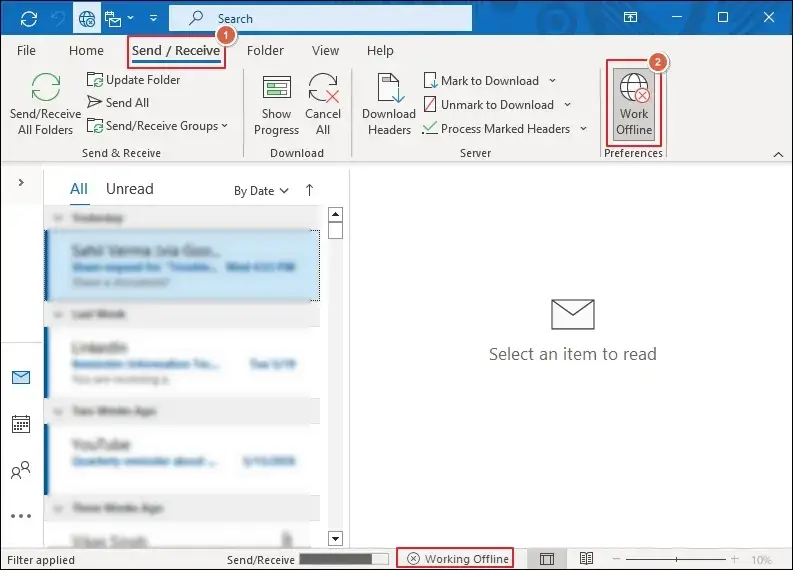
In Classic Outlook, click the Send / Receive tab on the top ribbon. Look at the Preferences group on the far right and check whether the Work Offline button is shaded grey or blue. Click it once to turn it off. In the New Outlook for Windows, if your emails are not syncing, click the View tab, select Sync, or toggle your internet connection off and on to force a fresh handshake.
Step 3: Clear Saved Microsoft Office Tokens in Windows Credential Manager
If clicking “Need Password” does nothing and the red exclamation mark returns every time you restart Outlook, wipe out the corrupted token stored in Windows:
- Close Microsoft Outlook completely.
- Press the Windows Key + S, type
Credential Manager, and press Enter. - Select Windows Credentials (not Web Credentials).
- Scroll down to the Generic Credentials section and look for any entries starting with
MicrosoftOffice16_Data:OAUTH2,MS.Outlook, orMicrosoftAccount:user. - Click the drop-down arrow next to each Outlook/Office entry and select Remove.
- Relaunch Outlook and sign in fresh when prompted.
Step 4: Release Emails Stuck in the Outbox Correctly
If you still have messages trapped in your Outbox after clearing the credential error:
- Go to the Send / Receive tab and click Work Offline so Outlook stops trying to transmit the stuck file in the background.
- Click your Outbox folder. Drag the stuck email from the Outbox into your Drafts folder.
- Double-click the email inside Drafts, verify that no single attachment exceeds 20 MB (oversized attachments frequently trigger permanent Outbox jams), and click Send.
- Click Work Offline again to go back online, then press F9 (or click Send/Receive All Folders) to flush the queue.
Step 5: Repair or Rebuild Your Local .OST Data File
When a corrupted local cache is the reason behind why is there an exclamation point on my outlook icon, rebuilding the .ost file is completely safe because all of your actual emails remain stored in the Microsoft 365 cloud:
- Close Outlook, press Windows Key + R to open the Run dialog, type
%localappdata%\Microsoft\Outlook, and press Enter. - Locate the large file ending in
.ostthat matches your email address. - Right-click the file, rename its extension from
.ostto.ost.old, and close File Explorer. - Open Outlook. The program will automatically build a clean, error-free
.ostfile and re-download your mailbox from the server.
Step 6: Reset the “New Outlook” App Package on Windows 11
If you switched to the New Outlook for Windows (which uses a web-based WebView2 architecture instead of traditional .ost files) and see a red exclamation mark next to your account name in the left sidebar:
- Right-click the Windows Start button and select Installed Apps (or Apps & Features).
- Search for Outlook (New), click the three-dot menu icon on the right, and select Advanced options.
- Scroll down to the Reset section and click Repair first. If the red exclamation badge persists, click Reset to clear the corrupted WebView2 cache without deleting your cloud emails.
Frequently Asked Questions (FAQ)
Why does my Outlook have a red exclamation mark on the taskbar icon?
A red circle with a white exclamation mark on the Outlook taskbar or system tray icon indicates a critical synchronization or authentication error. It appears when Microsoft 365 servers are experiencing an outage, when your account password or MFA token needs to be re-verified, or when your local .ost data file fails to sync with Exchange Online.
What is the difference between a red exclamation mark and a yellow triangle on the Outlook icon?
A red exclamation mark signifies a hard failure—such as rejected login credentials, an offline server, or a blocked account—whereas a yellow warning triangle indicates a temporary or partial connection issue, such as a slow IMAP timeout, a dropped Wi-Fi packet, or an active background sync delay.
Why do my sent emails have a red exclamation point next to them?
If a red exclamation point appears inside your message list next to an email subject rather than on the desktop app icon, that email was flagged as High Importance. You can turn this off while composing an email by clicking the High Importance (!) icon in the Tags section of the Message ribbon.
How do I fix Outlook when it says Disconnected even though my internet is working?
First, look at the bottom-right status bar in Outlook and click Need Password if visible. Next, go to the Send / Receive tab and ensure Work Offline is unchecked. If Outlook still shows Disconnected, open Windows Credential Manager, remove all saved MicrosoftOffice16_Data credentials, and restart Outlook to generate a fresh login token.