
Last Updated on 4 weeks ago by TodayWhy Editorial
If you’ve ever asked yourself “why is my computer so slow?” while waiting for a program to open, a page to load, or even just for the mouse cursor to respond, you’re far from alone. In 2026, the question is more relevant than ever: Windows 11 ships with always-on AI features like Copilot, browsers are heavier than they’ve ever been, RAM prices have climbed, and millions of users have just been pushed off Windows 10 — which reached end of support on October 14, 2025 — onto an operating system their hardware was never designed for.
Here’s the good news: in most cases, a computer running slow is not a sign of dying hardware. It’s a sign of software clutter, a full drive, or a handful of misconfigured settings — all fixable in under an hour. This guide explains the real causes and walks you through 11 fixes ranked from fastest to most effective, for both Windows 11 and the Windows 10 machines still out there.
The Short Answer
A computer becomes slow for one (or several) of four root causes: too many programs competing for resources (startup apps, background processes, browser tabs), not enough free disk space on the system drive, outdated software or drivers, or aging hardware — especially mechanical hard drives and insufficient RAM. Roughly 80% of slowdowns are solved by cleaning up startup programs, freeing disk space, and identifying resource hogs in Task Manager. The rest usually point to an SSD or RAM upgrade.
Symptom Checker: What Your Slowdown Is Telling You
| Symptom | Most likely cause | Start with fix |
|---|---|---|
| Slow boot, fine afterwards | Too many startup apps | Fix #3 |
| Everything lags, disk at 100% | Full drive or HDD bottleneck | Fix #4 & #11 |
| Slow only in the browser | Too many tabs/extensions | Fix #9 |
| Slow after a Windows update | Pending/buggy update, drivers | Fix #6 |
| Random freezes, fan always loud | Overheating, thermal throttling | Fix #11 |
| Slow when multitasking | Not enough RAM | Fix #2 & #11 |
Sudden Slowdown vs Gradual Slowdown: Which One Do You Have?
Before you try a single fix, answer one question: was your computer fine last week?
This is the most useful question in the whole process, and almost nobody asks it. A machine that has been getting slower for a year has a completely different problem from one that was fast on Monday and unusable on Tuesday. The fixes barely overlap. Trying random tips without knowing which situation you are in is why people spend an afternoon cleaning up startup programs when the real cause was a driver that installed itself overnight.
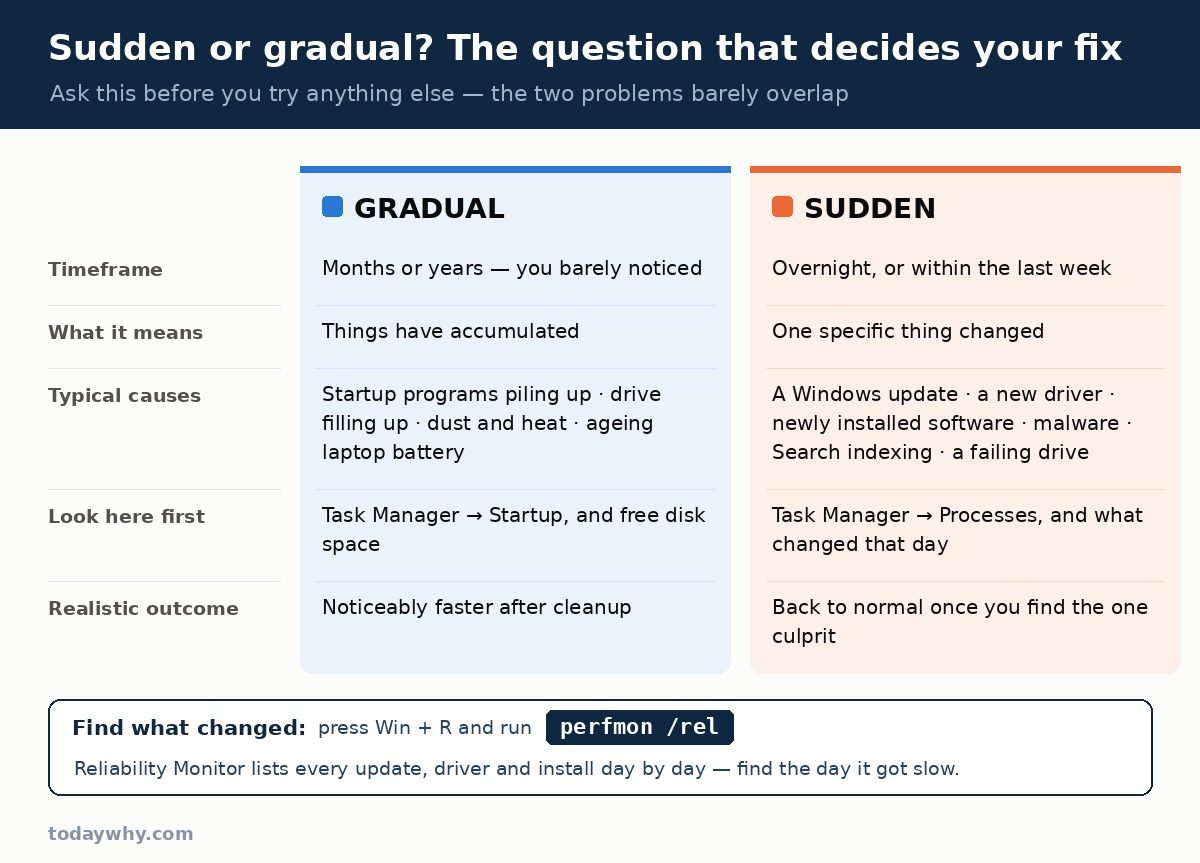
| Gradual slowdown | Sudden slowdown | |
|---|---|---|
| Timeframe | Months or years, so slow you barely noticed | Overnight, or within the last week |
| What it means | Things have accumulated | One specific thing changed |
| Typical causes | Startup programs piling up, drive filling up, dust and heat, ageing battery, heavier software over time | A Windows update, a new driver, newly installed software, malware, a failing drive, background indexing |
| Where to look first | Task Manager → Startup, and free disk space | Task Manager → Processes, and what changed on the day it started |
| Realistic outcome | Noticeably faster after cleanup | Back to normal once you find the one culprit |
If it came on suddenly: find out what changed
When a computer slows down overnight, something specific caused it. Your job is identification, not cleanup.
Start with Reliability Monitor. This is the most underused tool in Windows and it answers the question directly. Press the Windows key, type reliability, and open View reliability history — or press Windows + R and run perfmon /rel. You get a day-by-day timeline of every update, driver installation, software install and crash. Find the day the slowdown started and look at what Windows installed that day. Very often the answer is sitting right there.
Then open Task Manager (Ctrl + Shift + Esc) and click the CPU, Memory and Disk column headers in turn to sort by each. One process sitting at the top of the Disk column at 100% for long stretches explains everything. The usual suspects on a sudden slowdown:
- Windows Update downloading or installing in the background.
- Windows Search indexing, which restarts from scratch after a big feature update and can hammer the disk for a day or more.
- A cloud sync client — OneDrive, Dropbox, Google Drive — doing a full re-sync after a settings change or a re-login.
- A graphics driver that updated itself, especially on laptops with switchable graphics.
- Newly installed software with a background service: antivirus, game launchers, anti-cheat services, VPN clients.
- Malware or a cryptominer, which typically shows as high CPU that drops the moment you open Task Manager.
- A failing drive. If the slowdown comes with freezes, clicking sounds, or apps hanging for 30 seconds at a time, stop troubleshooting and back up your files immediately. A dying drive gets worse quickly, and performance is the least of what you lose.
If it got slow gradually: it is accumulation, not an event
Nothing broke. Your computer is doing more work than it used to, with less room to do it in.
The three things that account for most gradual slowdowns are startup programs that each added themselves quietly over the years, a drive that has filled up to the point where Windows has no working space left, and heat — dust in the vents and ageing thermal paste make the processor throttle itself to stay safe. On laptops, add a fourth: a worn battery can force the machine into a low-power mode even when plugged in.
There is no single culprit to find here, so there is no point hunting for one. Work through the fixes below in order and the machine will get measurably faster with each one.
A third case: slow only sometimes
If your computer is fast most of the time but crawls in specific situations — always in the afternoon, always after an hour of use, always when one particular program is open — that is usually thermal throttling or a single misbehaving application, not a system-wide problem. Note exactly when it happens before changing anything; that pattern is the diagnosis.
Once you know which of the three you are dealing with, the causes and fixes below will make much more sense — and you can skip the ones that do not apply to you.
10 Common Reasons Why Your Computer Is So Slow
1. Too Many Startup Programs and Background Processes
Modern apps love launching themselves at boot: cloud sync clients (OneDrive, Dropbox), chat tools, game launchers, printer utilities, update checkers. Each one claims a slice of CPU, RAM, and disk bandwidth before you’ve opened a single program yourself. This is the single most common answer to “why is my computer so slow” — and the easiest to fix.
2. Low Disk Space on the System Drive
When your C: drive drops below roughly 15–20% free space, Windows struggles to manage virtual memory, temporary files, and updates. Everything from file saves to app launches starts to drag.
3. Pending Updates or a Buggy Patch
An update downloading or installing in the background can max out your disk for an hour. And occasionally a patch itself causes regressions — several 2025–2026 Windows 11 updates were linked to input lag in video calls and certain apps until follow-up fixes shipped.
4. Malware or Overly Aggressive Antivirus
Infections mine your resources by design. But ironically, security software is a frequent culprit too: a full antivirus scan can pin your disk and CPU at 100% — and running two antivirus products at once practically guarantees a slow machine.
5. Not Enough RAM
With tab-heavy browsing, Electron-based apps, and built-in AI features, 8 GB of RAM frequently runs out in 2026. When RAM is full, Windows swaps data to disk — which is dramatically slower, especially on a hard drive.
6. Overheating and Thermal Throttling
Dust-clogged fans and vents force the CPU and GPU to deliberately slow themselves down to avoid damage. Laptops more than two or three years old are especially prone.
7. A Mechanical Hard Drive (HDD) Instead of an SSD
If your operating system still lives on a spinning hard drive, no software tweak will ever make the PC feel fast. An SSD is 5–10× faster for everyday operations and remains the single biggest upgrade available.
8. Browser Overload
Chrome and Edge keep every tab partly alive in memory, and poorly built extensions leak resources over time. Thirty open tabs can quietly consume more RAM than every other program combined.
9. Visual Effects and Always-On AI Features
Transparency, animations, widgets, and assistants like Copilot each add small overhead. On modern hardware it’s negligible; on an older or low-RAM machine, it accumulates.
10. Years of Software Clutter
Old programs, leftover services, duplicate utilities, and forgotten driver packages slowly pile up. A four-year-old Windows installation rarely runs as cleanly as a fresh one — which is why a reset is the nuclear option that almost always works.
How to Fix a Slow Computer: 11 Step-by-Step Solutions
Work through these in order — they’re ranked roughly from fastest to most involved. Most people see a major improvement after the first five.
1. Restart Properly (Yes, Really)
A genuine restart clears stuck processes and frees RAM. Note: in Windows, Shut down with Fast Startup enabled doesn’t fully reset the system — use Start > Power > Restart instead.
2. Find the Resource Hogs in Task Manager
- Press Ctrl + Shift + Esc to open Task Manager.
- In the Processes tab, sort by CPU, then Memory, then Disk.
- Anything consistently above 20–30% that you didn’t launch is a suspect — typically antivirus scans, Windows Update, or a browser.
- Right-click non-essential items and choose End task. Leave anything labeled as a Windows system process alone.
3. Disable Unnecessary Startup Apps
- In Task Manager, open the Startup apps tab.
- Disable high-impact entries you don’t need at boot — Spotify, Discord, Adobe updaters, game launchers.
- This is the highest impact-to-effort fix on this list for slow boots.
4. Free Up Disk Space
- Go to Settings > System > Storage and turn on Storage Sense, which automatically clears temporary files and old Recycle Bin content.
- Open Temporary files and remove old Windows Update leftovers — this alone often frees 10–20 GB.
- Uninstall unused apps under Settings > Apps > Installed apps.
- Target at least 15–20% free space on C:. Microsoft’s full guide to freeing up drive space in Windows covers every option.
5. Run a Malware Scan
- Use the built-in tool first: Settings > Privacy & security > Windows Security > Virus & threat protection > run a Full scan.
- If you run a third-party antivirus, make sure only one real-time scanner is active — two at once is a notorious performance killer.
6. Update Windows, Drivers, and Apps
- Settings > Windows Update > install everything, including optional driver updates.
- Outdated graphics drivers are behind a surprising share of 2026 slowdown complaints — especially stutter in browsers and video calls.
- If the slowdown began right after an update, check whether a follow-up fix is already available before rolling anything back.
7. Switch to the Best Performance Power Mode
- Settings > System > Power & battery > set Power mode to Best performance (always sensible on desktops; on laptops, expect shorter battery life).
8. Reduce Visual Effects
- Search for “Adjust the appearance and performance of Windows”.
- Select Adjust for best performance, or manually disable animations and transparency.
- Menus and windows will open noticeably snappier on older machines. Microsoft documents this and other tweaks in its official tips to improve PC performance in Windows.
9. Tame Your Browser
- Type chrome://extensions (or edge://extensions) and disable anything you don’t actively use.
- Enable the built-in tab sleep features: Memory Saver in Chrome, Sleeping tabs in Edge.
- Bookmark-and-close beats keeping 40 tabs open. If you genuinely need heavy multitasking, more RAM helps more than switching browsers.
10. Advanced Tweaks
- Restrict background activity per app: Settings > Apps > Installed apps > three-dot menu > Advanced options > Background apps permissions.
- If you never use Copilot, turn it off: search Settings for Copilot and disable it.
- Low on RAM with no upgrade option? Increase virtual memory: search “Advanced system settings” > Performance Settings > Advanced > Virtual memory > set a custom size of roughly 1.5× your installed RAM.
11. Hardware Upgrades — the Biggest Impact of All
- Replace an HDD with an SSD. Nothing else on this list comes close. Boot times drop from minutes to seconds.
- Add RAM. Aim for 16 GB as the 2026 baseline, 32 GB for heavy multitasking — though note that memory prices have risen sharply, so compare the upgrade cost against a new machine.
- Clean the dust. Compressed air through the vents and fans prevents thermal throttling — give a laptop this treatment at least once a year.
Still on Windows 10? The 2026 Elephant in the Room
Millions of slow-PC complaints in 2026 trace back to one event: Windows 10 support ended on October 14, 2025. PCs that upgraded to Windows 11 on borderline hardware — particularly 8 GB RAM systems and anything still on a hard drive — took a noticeable performance hit. If that’s your situation, prioritize Fixes #3, #4, #8, and the hardware upgrades in #11. And if your machine can’t be upgraded economically, factor in that an unsupported, unpatched system also becomes a growing security risk, not just a slow one.
When to Consider Professional Help or a Reset
If you’ve worked through everything above and the PC is still crawling:
- Repair system files: open Command Prompt as administrator and run sfc /scannow, then DISM /Online /Cleanup-Image /RestoreHealth.
- Reset Windows while keeping your files: Settings > System > Recovery > Reset this PC. On a years-old installation, this is the closest thing to a guaranteed fix.
- If a reset doesn’t help, suspect failing hardware — a dying drive (check for SMART warnings), degraded laptop battery, or faulty RAM — and have it tested professionally.
Frequently Asked Questions
Why is my computer so slow all of a sudden?
Sudden slowdowns usually mean a background event: a Windows update installing, an antivirus scan running, a newly installed app auto-starting, or your system drive finally filling up. Open Task Manager (Ctrl + Shift + Esc) and sort by CPU, Memory, and Disk to see what changed.
How much RAM do I need in 2026?
8 GB is the bare minimum for light use. With modern browsers and AI features, 16 GB is the comfortable baseline; gamers, creators, and heavy multitaskers should target 32 GB.
Does Windows 11 make computers slower than Windows 10?
On supported hardware, performance is comparable. But Windows 11 enables more security features by default and carries AI overhead that older machines feel — especially with 8 GB RAM or a mechanical drive. Staying on Windows 10 is no longer a safe alternative since support ended in October 2025.
Will resetting my PC make it faster?
Usually, yes. A reset clears years of software clutter and broken drivers while keeping your personal files. Treat it as the last software fix before hardware upgrades.
Is it worth upgrading an old computer or buying a new one?
If it still runs on an HDD, an SSD + RAM upgrade is excellent value and can add years of life. If the CPU is 8–10+ years old or fails Windows 11 requirements, a new PC is usually the smarter spend.
Why is my computer slow even with good specs?
Software, not hardware: startup bloat, a full C: drive, outdated GPU drivers, dual antivirus products, dust-induced throttling, or a power-saving mode. High-spec machines are not immune to clutter.
Final Thoughts
In 2026, the answer to “why is my computer so slow” is almost always software clutter, low storage, startup bloat, or background resource hogs — not failing hardware. Start with Task Manager, startup cleanup, and disk space; most users see a dramatic improvement within the first five fixes, in well under an hour. If the machine still drags, an SSD and a RAM bump will transform it more than any settings tweak ever could.