
Why is my Amazon in Spanish all of a sudden? If you opened the Amazon shopping app on your iPhone or Android phone—or clicked a product link on your desktop browser—and suddenly found every menu, button, and product description written in Español (such as “Comprar ahora”, “Agregar al Carrito”, or “Pedidos”), you are dealing with one of the most common account-setting glitches in e-commerce.
While many shoppers initially panic and worry that their account has been hacked, the real explanation is almost always a harmless URL parameter or a persistent browser cookie. In this complete, step-by-step troubleshooting guide, we explain the exact technical reasons why is my Amazon in Spanish, how to switch your language back to English in under 30 seconds across mobile apps and web browsers, and how to verify whether your account security is completely safe.
⚡ 30-Second Quick Fix: Switch Amazon Back to English Right Now
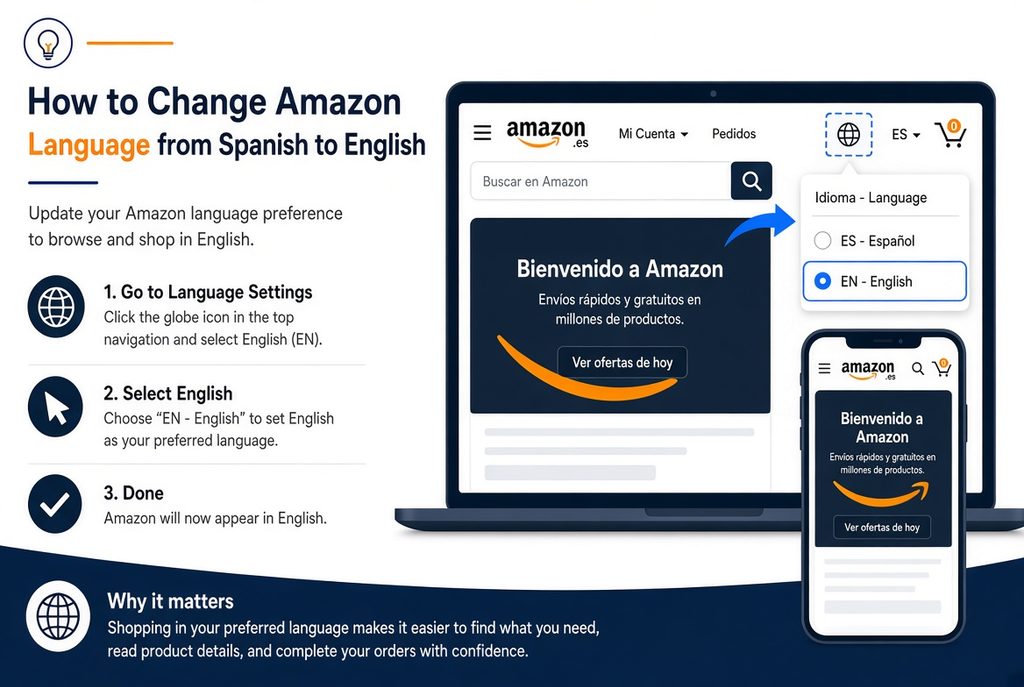
- On Desktop / Laptop Browser (Fastest Method): Look at the top navigation bar just to the right of the Amazon search bar. Hover your mouse over the Flag Icon (ES) and select English – EN from the dropdown menu.
- Direct One-Click English Reset Link: Visit Amazon’s Official Language Preferences Page, select English – EN, and click the yellow Save Changes (Guardar cambios) button.
- On the Amazon Mobile App (iPhone & Android): Tap the Three Horizontal Lines (☰) in the bottom-right corner → scroll down and tap Settings (Configuración) with the US Flag icon → tap Country & Language (País e idioma) → select English.
Why Is My Amazon in Spanish? The 5 Real Reasons Explained
When thousands of users search for why is my Amazon in Spanish every week, they are usually baffled because they never manually opened their preferences to change the language. Unlike server-side platform crashes—such as when users ask why YouTube is refusing to connect or why Fortnite servers are down—this issue happens locally through Amazon’s localization cookies. Here are the five specific triggers:
1. The “?language=es_US” Shared Link Trap (Cause of 85% of Cases)
By far the number one reason why is my Amazon in Spanish is that you clicked an Amazon product link on Google Search, Reddit, TikTok, Facebook, or in a text message that contained the URL parameter ?language=es_US or &language=es_US at the end. When a bilingual shopper or affiliate creator copies an Amazon link while browsing in Spanish, that language tag is baked into the URL. The moment you click that link, Amazon’s servers automatically drop a preference cookie onto your browser or app that switches your entire interface to Spanish—and keeps it in Spanish even after you close the tab.
2. Accidental Hover over the Top-Bar Flag Icon on Desktop
On the desktop version of Amazon.com, the language selector sits right next to the search bar and the “Account & Lists” menu. Unlike most settings that require you to click a “Save” button, Amazon’s top-bar language flyout menu is notoriously sensitive: if your mouse cursor briefly hovers over the flag icon and accidentally clicks the radio button for español – ES right above or below your account menu, the entire site reloads in Spanish immediately.
3. Cross-Device Account Syncing (Household & Shared Logins)
If you are logged into your Amazon Prime account, your language preference is not just stored in a temporary browser cookie—it is also synced to your central Amazon profile. If a family member, roommate, or child using a shared tablet, Smart TV, or secondary phone accidentally taps the Spanish language option on their device, Amazon’s cloud profile sync can push that es_US setting across your primary smartphone and laptop.
4. VPN Routing, Travel, or Carrier IP Misidentification
If you use a Virtual Private Network (VPN), Apple iCloud Private Relay, or mobile data near a border region (or while traveling in Mexico, Puerto Rico, Spain, or Latin America), Amazon’s geolocation system may detect a Spanish-speaking IP address and prompt a regional language switch. Similarly, during cellular network routing shifts—like those analyzed in our T-Mobile SOS mode and network routing guide—mobile gateways can occasionally assign IP blocks that trigger localized language banners.
5. Browser Autofill or Chrome/Safari Auto-Translation Conflicts
Occasionally, Amazon itself is still set to English, but Google Chrome’s built-in Google Translate extension or Apple Safari’s webpage translation tool has accidentally been set to “Always translate English to Spanish.” You can easily tell if this is the culprit by checking the right side of your browser’s address bar for a small blue Translate icon.
Spanish-to-English Amazon Menu Dictionary (Find Every Button Fast)
When your screen is stuck in another language, navigating through menus to fix the problem can feel impossible because you cannot read the settings labels. If you are asking why is my Amazon in Spanish and just need to know which Spanish words to click to get back to English, use this side-by-side translation table:
| Spanish Label on Your Screen | English Meaning | Where You See It on Amazon |
|---|---|---|
| Configuración | Settings | Bottom of the mobile app menu (☰) next to the flag icon |
| País e idioma | Country & Language | First option inside the mobile Settings menu |
| Idioma | Language | Desktop & mobile language preference header |
| Guardar cambios | Save Changes | Yellow confirmation button at the bottom of the language page |
| Hola, Identifícate / Cuenta y Listas | Hello, Sign in / Account & Lists | Top-right navigation bar on desktop browsers |
| Devoluciones y Pedidos | Returns & Orders | Order history button next to the shopping cart |
| Carrito / Comprar ahora | Cart / Buy Now | Checkout and product purchase buttons |
How to Fix “Why Is My Amazon in Spanish” on Every Device (Step-by-Step)
Depending on whether you are shopping on a computer, an iPhone/Android app, or a mobile web browser, follow the exact method below to permanently lock your language back to English.
Method 1: How to Change Amazon Back to English on Desktop (PC & Mac)
- Open Amazon.com on your desktop browser (Chrome, Safari, Edge, or Firefox).
- Look at the top dark-blue navigation bar, immediately to the right of the main search bar, where you will see a small US Flag icon with the letters ES underneath it.
- Hover your cursor over the ES Flag icon (or click it directly).
- In the pop-up menu under “Cambiar idioma” (Change language), click the circular radio button next to English – EN.
- If you clicked into the full settings page, click the yellow Guardar cambios (Save Changes) button at the bottom. Your page will instantly refresh in English.
Method 2: How to Change Amazon Back to English on the Mobile App (iPhone & Android)
- Open the Amazon Shopping app on your iPhone, iPad, or Android smartphone.
- Tap the Menu icon (☰ — three horizontal lines) located in the bottom-right corner of the screen (on Android, it may also appear in the bottom navigation bar).
- Scroll all the way to the bottom of the menu list and tap the tab labeled Configuración (Settings), which always displays a small Flag icon next to it.
- In the drop-down list that opens, tap the very first option: País e idioma (Country & Language).
- A window will pop up showing your current country (Estados Unidos) and current language (Español). Tap Idioma: Español and select English.
- Tap the blue or yellow confirmation button labeled Listo or Continuar en English. The app will reload in English within two seconds.
Method 3: How to Fix It When Spanish Keeps Coming Back (Clear the Cookie Loop)
Sometimes users fix their settings, only to ask why is my Amazon in Spanish again the very next day. This happens when a corrupted lc-main=es_US cookie is stuck in your browser cache or when a bookmarked URL still contains the Spanish tag:
- Check your Amazon Bookmark: Right-click your saved Amazon bookmark in your browser and click Edit. If the URL says
https://www.amazon.com/?language=es_US, delete everything after.com/or change it tohttps://www.amazon.com/?language=en_US. - Clear Amazon Site Cookies: Click the Padlock / Tune icon on the left side of your browser’s address bar while on Amazon.com → select Cookies and site data → click Manage on-device site data → click the trash can icon next to
amazon.comand sign back in.
Security Check: Does Amazon Turning Spanish Mean My Account Was Hacked?
Whenever an online shopping account changes behavior unexpectedly, it is smart to verify your cybersecurity. In 99% of cases, seeing Spanish on Amazon is caused by clicking a shared ?language=es_US product link on Google or social media—not a hacker.
However, it takes only 60 seconds to confirm that no unauthorized person has accessed your account. Once you switch your language back to English, check these three items immediately:
- Check Your Recent Orders & “Archived Orders”: Go to Returns & Orders to ensure no unfamiliar purchases appear. Also check Account & Lists → Your Account → Archived Orders, as scammers who gain access to an account often archive their fraudulent gift card or electronics orders to hide them from your main order feed.
- Review Your Active Logged-In Devices: Go to Your Account → Login & Security → Manage Your Devices (or Compromised Account?). If you see an unfamiliar smartphone, tablet, or web browser logged in from another city or country, click Deregister immediately.
- Enable Two-Step Verification (2SV): Under Login & Security, change your password and turn on Two-Step Verification using an authenticator app or SMS code so that no one can log in even if your password is leaked elsewhere.
🔧 More Tech Troubleshooting & Major Explainer Guides on TodayWhy
- Streaming & App Connection Fixes: Why Is YouTube Refusing to Connect? Complete Troubleshooting Guide
- Mobile Network & iPhone Alerts: T-Mobile SOS Mode Outage Explained: Why Your Phone Says SOS Only
- Gaming Server Status: Why Are Fortnite Servers Down? Maintenance & Outage Tracker
- US Federal & State Alerts: Why Are Flags at Half-Staff Today? Official 2026 Guide & Why Was Daylight Saving Time Started?
Frequently Asked Questions (FAQ)
Why is my Amazon in Spanish all of a sudden?
In almost all cases, your Amazon switched to Spanish because you clicked a product link on Google, Reddit, TikTok, or social media that contained the URL tag “?language=es_US” at the end. Clicking a Spanish-tagged link automatically updates your Amazon browser cookie or app preference to Spanish until you manually switch it back.
How do I change my Amazon app from Spanish back to English?
Open the Amazon app, tap the three horizontal lines (☰) in the bottom-right corner, scroll down to the bottom and tap “Configuración” (next to the flag icon), tap “País e idioma” (Country & Language), select “Idioma: Español,” and switch it to “English.”
What is the direct URL to force Amazon back into English?
You can instantly force your desktop or mobile browser back to English by visiting www.amazon.com/?language=en_US or by going to www.amazon.com/gp/customer-preferences/select-language, selecting “English – EN,” and clicking the yellow “Guardar cambios” (Save Changes) button.
Could my Amazon account be hacked if the language changed to Spanish?
While a sudden language change is 99% likely to be caused by clicking a shared Spanish referral link or accidentally hovering over the top-bar flag menu, you should quickly check your “Returns & Orders” and “Archived Orders” pages to confirm no unauthorized purchases were made, and review your logged-in devices under “Login & Security.”